
YOUR STORE FOR LOAD CELLS, SCALE, WEIGHT INDICATORS.

One recipe, up to 11 ingredients, one controller.
WT-MIFill doses liquids and bulk material by weight, one ingredient after another, into the same vessel. MIFill Studio lets you manage the products, recipes and users from a PC on the network. It runs on the WeightechUSA WT8000 controller and is programmed and supported by WeightechUSA in Davie, FL.
Watch one batch run, step by step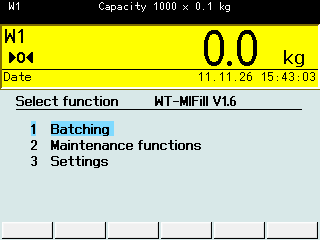
Where it fits
WT-MIFill fits wherever several ingredients go into one weighed vessel, one after another: a mixing tank on load cells, a blending hopper, or a drum, tote or IBC on a platform scale. Automatic ingredients are dosed through their own valves or feeders; ingredients added by hand are weighed in the same batch.
Typical uses
- Liquid blends and syrups in a mixing tank
- Coatings, resins and adhesives by recipe
- Cleaning and chemical products
- Dry premixes into a weigh hopper
- Drum, tote and IBC batching on a floor scale
Swipe to see the whole drawing
How a batch runs
Six steps from login to label. The terminal alongside follows as you scroll, one real screen after another.
-
1
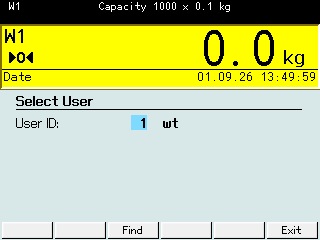
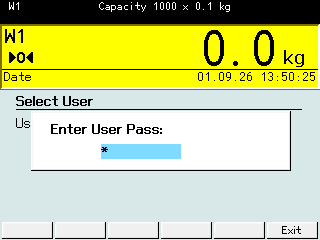
Log in
The operator enters a user ID and password. Only stored users can start a batch.
-
2
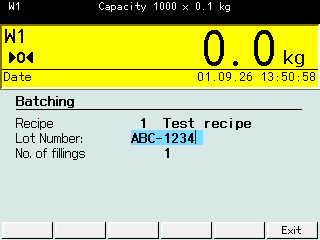
Pick the recipe
Recipe ID, lot number and, if enabled, the number of fillings.
-
3
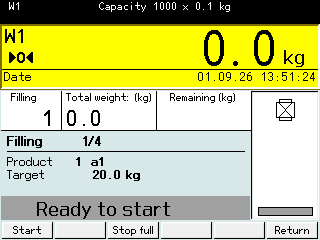
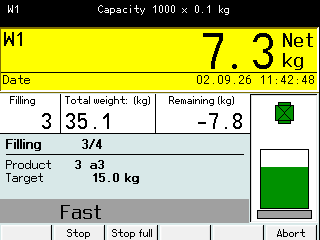
Dose each ingredient
The terminal tares, opens the fast output, switches to slow near the target and closes at the cut-off point. The free fall is corrected automatically for the next batch.
-
4
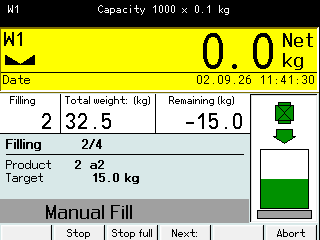
Add manual ingredients
For hand-added ingredients the terminal shows the target and waits for the operator to confirm.
-
5
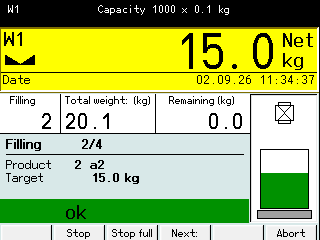
Check and move on
Each ingredient is checked against its tolerance, then the next one starts on top of the same container total.
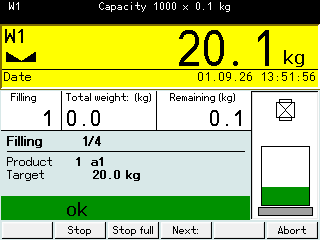
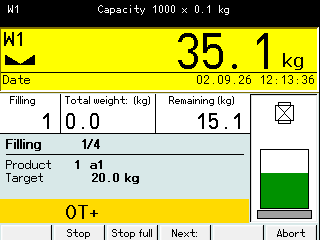
-
6
Discharge and print
The vessel discharges, the batch label prints and the record is stored.
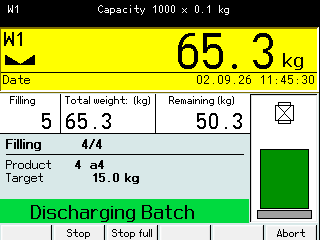
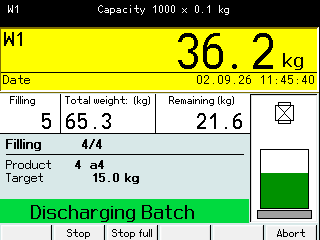
Select user
Screens from a WT8000 running a test recipe.
What the controller does
- Recipes
- 200 recipes, 99 products, 20 users, up to 11 ingredients per recipe.
- Automatic and manual
- Automatic and manual ingredients in the same batch.
- Two-speed dosing
- Coarse/fine dosing with automatic free-fall correction.
- Checks
- Tolerance check and flow-rate monitoring set per product.
- Output ports
- Each ingredient gets its own output, assigned automatically or set per ingredient in the recipe (OUT2 to OUT15). The terminal warns at recipe selection if two ingredients share a port or a port is out of range.
- Printing
- Batch label and statistics ticket on a 4 x 6 in label printer.
- Records
- Batch records to a CSV file, copied to USB or fetched over FTP.
- Languages
- Operator screens in English, Spanish, German and French.
- Filling mode
- The same terminal also fills a single product to a target weight.
MIFill Studio
Edit products, recipes and users on a PC instead of the terminal keypad. Changes go to the unit over the network and are in use from the next batch.
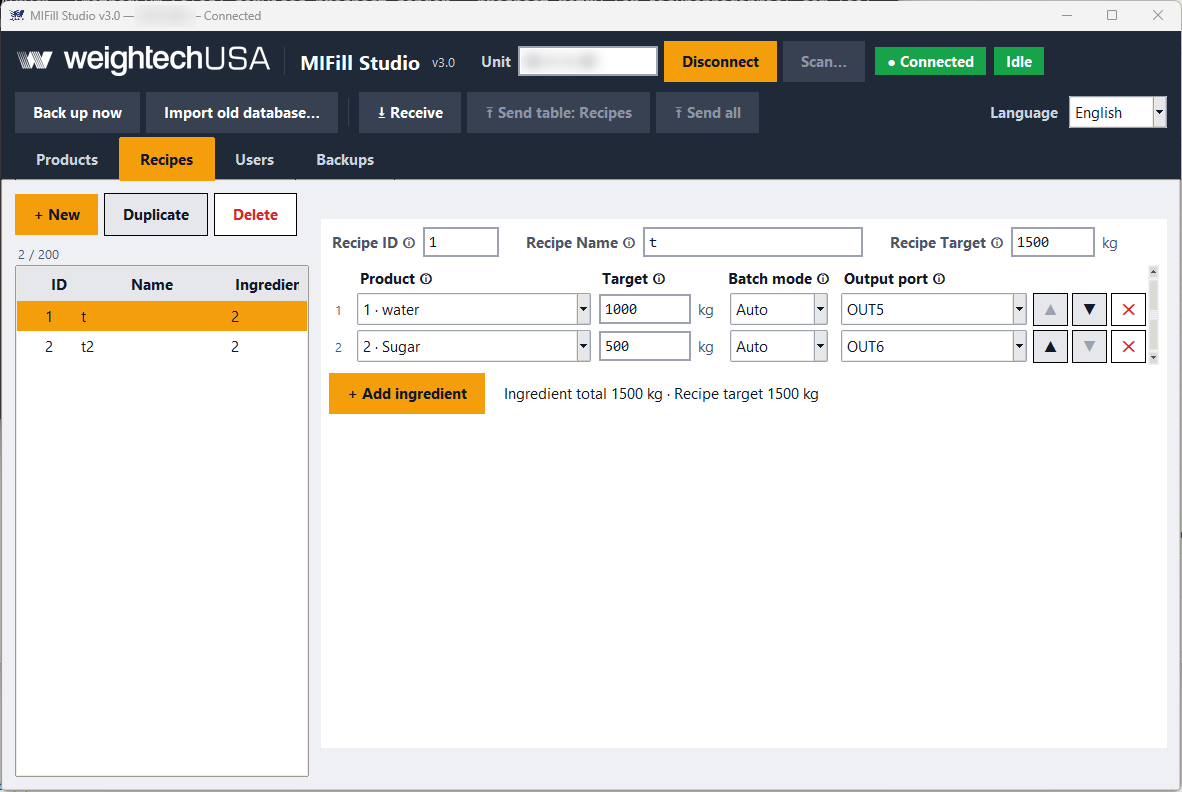
Swipe to see the whole window
- Nothing is written while the unit is workingA send is refused unless the scale is idle.
- Every send is backed up firstAll tables are saved to the PC before anything is written.
- Every write is verifiedThe table is read back and compared, and put back the way it was if it does not match.
- Errors are caught on the PCValues the unit cannot hold are marked red and block the send.
Your edits do not overwrite values the unit learned on its own, such as a corrected free fall.
One program file, no installation, Windows 10 or 11.


The send sequence
- Check idleThe unit must be idle.
- Back upAll tables saved to the PC.
- WriteChanges go over the network.
- Read back and verifyCompared with your edits, restored on a mismatch.
PLC and fieldbus
A PLC can run the batch. It reads the weights, the process state and the error codes, and sends the commands listed here.
The data words are the same on Modbus TCP, Profibus DP and EtherNet/IP (EtherNet/IP needs the terminal's ETX module). The terminal monitors a heartbeat, so it detects a lost PLC link.
Operator login, lot number and number of fillings stay at the terminal.
- Start
- Acknowledge
- Release
- Abort
- Next
- Cancel batch
- Recipe selection
- Weights
- Process state
- Error codes
- Modbus TCP
- Profibus DP
- EtherNet/IP
At a glance
| Controller | WeightechUSA WT8000 (SysTec IT8000E hardware) |
|---|---|
| Recipes / products / users | 200 / 99 / 20 |
| Ingredients per recipe | up to 11, automatic or manual |
| Dosing | one-speed or two-speed (coarse/fine), free-fall correction |
| Filling outputs | OUT2 to OUT15 |
| Fieldbus | Modbus TCP, Profibus DP, EtherNet/IP (ETX module) |
| Printing | batch label and statistics ticket, 4 x 6 in |
| Records | CSV file, USB, FTP |
| Languages | English, Spanish, German, French |
| PC software | MIFill Studio, Windows 10 / 11, network connection to the unit |
Tell us what you batch.
Send us the ingredients, target weights and how the vessel is fed. We will tell you how WT-MIFill would run it.
More dosing and filling equipment